AI Virtual Staging for Realtors
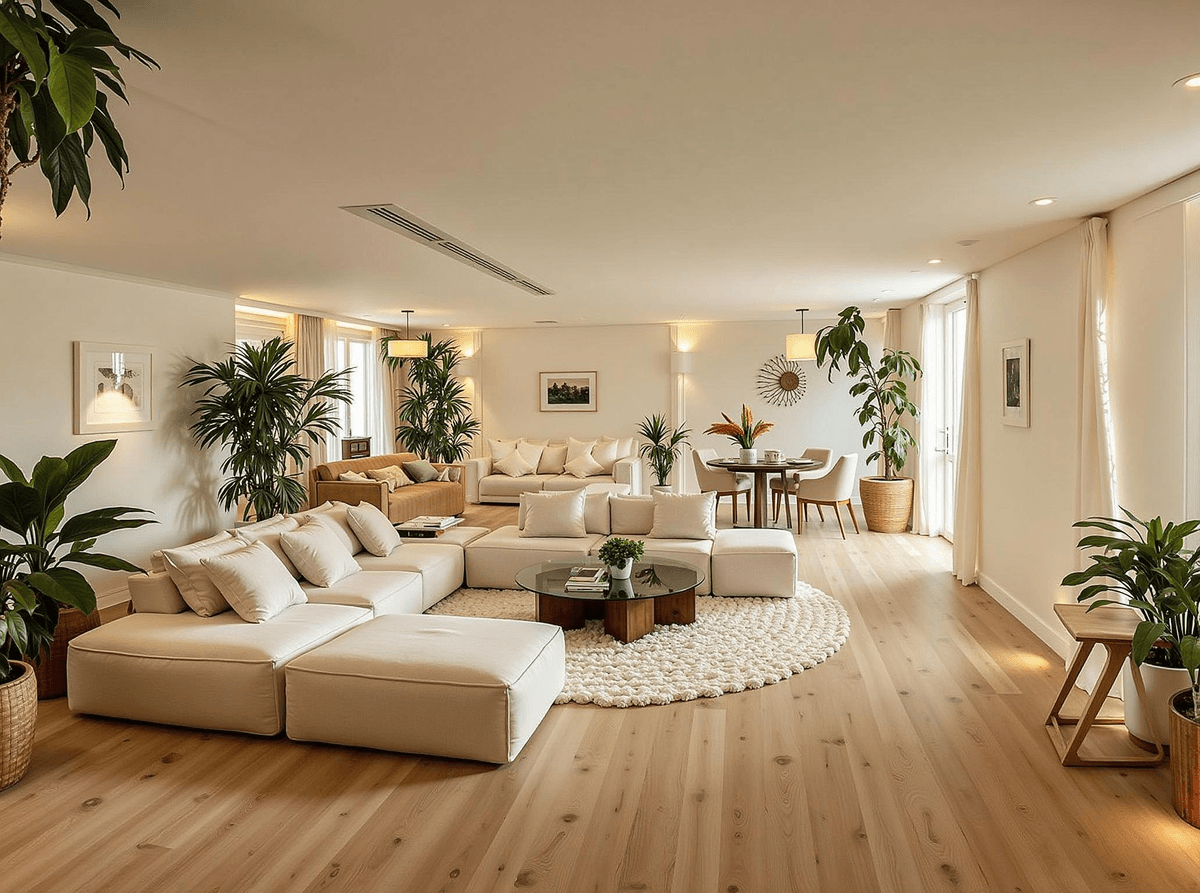
Help viewers picture how a vacant room could be furnished. Upload a property photo, choose a style, and review the generated concept against the original.
Why Realtors Choose AI Virtual Staging
Explore how a vacant room could look furnished, then review the result against the property photo before sharing it.
Explore Staging Without Moving Furniture
Start with a photo of a vacant room and explore how furnishings might define the space before arranging a physical staging session.
Help Buyers Picture the Space
A furnished concept can give buyers a visual reference for where a sofa or dining table might fit. Compare it with the original photo so the actual room remains clear.
Stage Any Room with AI Staging
Explore furnishing ideas for living rooms, bedrooms, kitchens, dining rooms, and offices. Review each generated concept before using it in a listing.
Multiple Staging Styles Per Listing
Explore available styles such as Modern, Traditional, Farmhouse, and Coastal. Compare concepts and choose one that suits the actual space and your listing presentation.
How Virtual Staging Works for Realtors
From an empty room photo to a reviewed staging concept in three steps.
Realtors Upload a Property Photo
Use a clear photo of the vacant room, such as a living room, bedroom, kitchen, dining room, or office. Keep the unaltered file for comparison.
Choose a Virtual Staging Style
Choose an available style that suits the property and review how the furnishings appear in the actual room.
Download the Staged Photo
Download the concept, compare it with the original, and check your MLS disclosure rules before sharing it in a listing or other marketing.
Listing Photo Compliance & Disclosure
Keep the original. Save the unaltered photo of every room you stage. Your MLS or local rules may require you to show it alongside the edited image or make it available through a link.
Label the image. Identify virtually staged and AI-enhanced photos before publishing them. Some MLSs require a visible label on the image itself; others permit a caption or listing remarks. Check your own board's current rules and use the format it requires.
Check before you publish. Compare each result with the original for appliances that do not exist, moved windows or doors, missing walls, and changed proportions. A concept should help people picture a possible use for the room without misrepresenting the property.
Virtual Staging Styles for Realtors
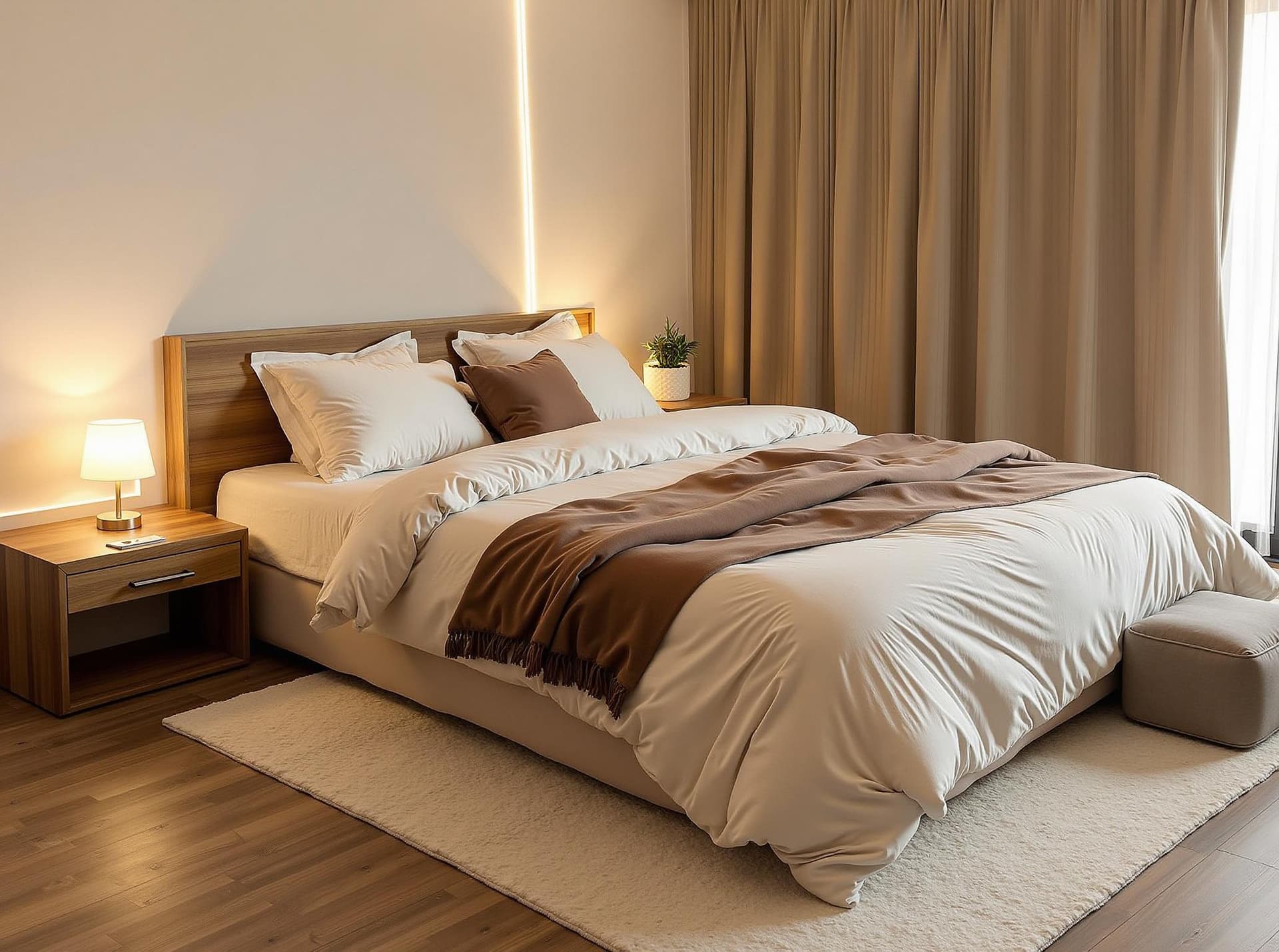
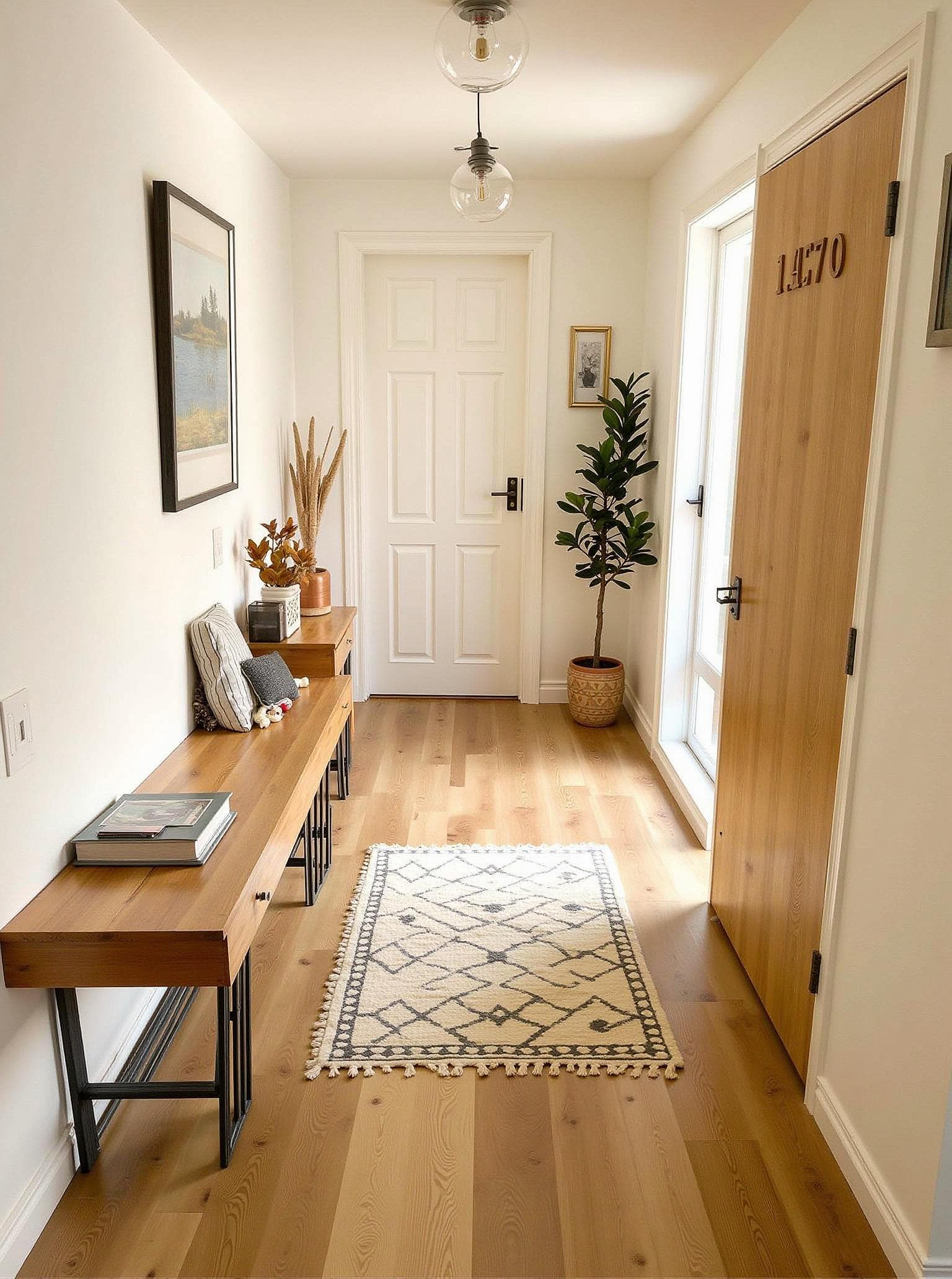
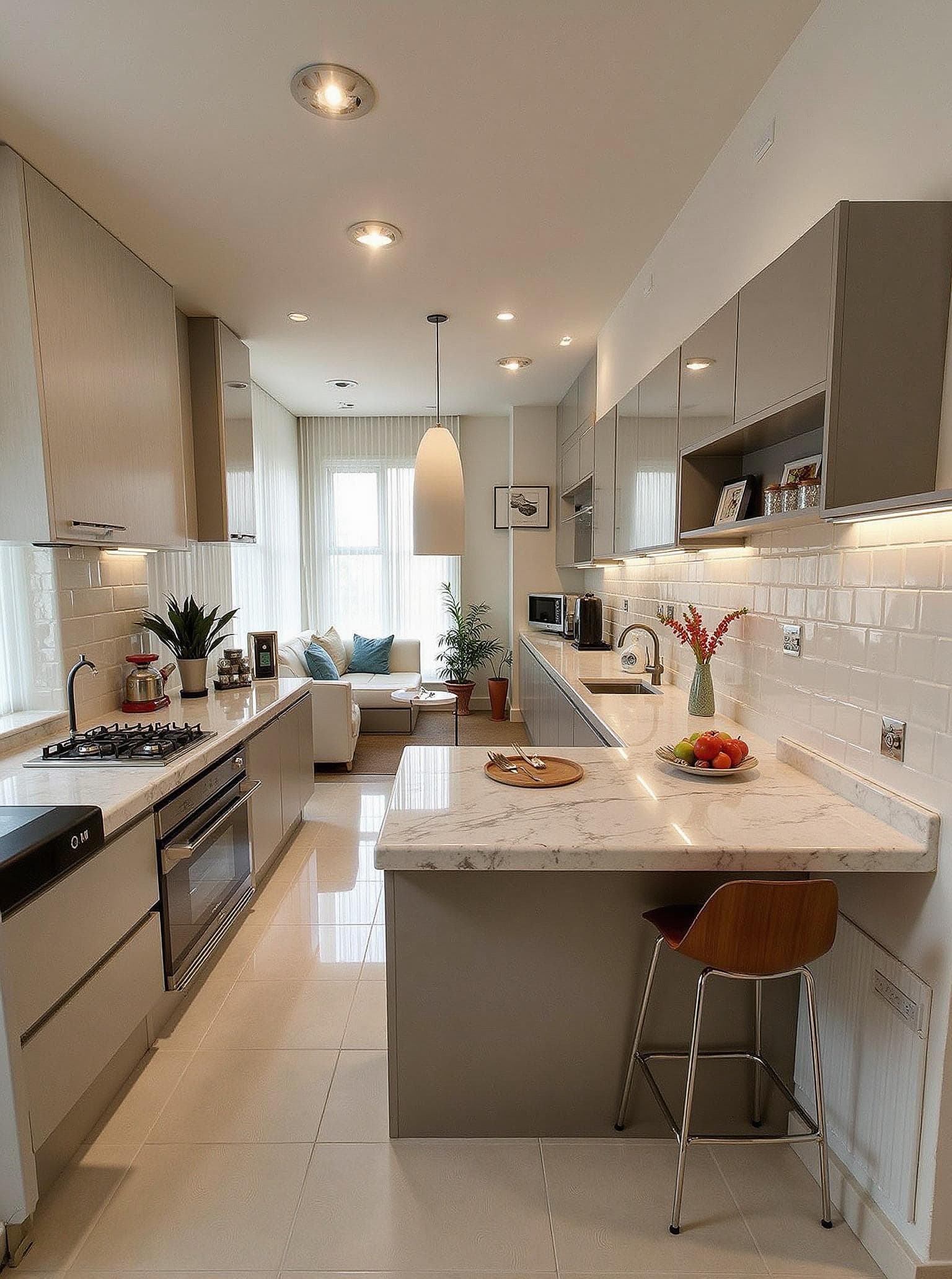
Explore a style that suits the room and the property.
Modern Minimalist Staging
Scandinavian Staging
Luxury Staging
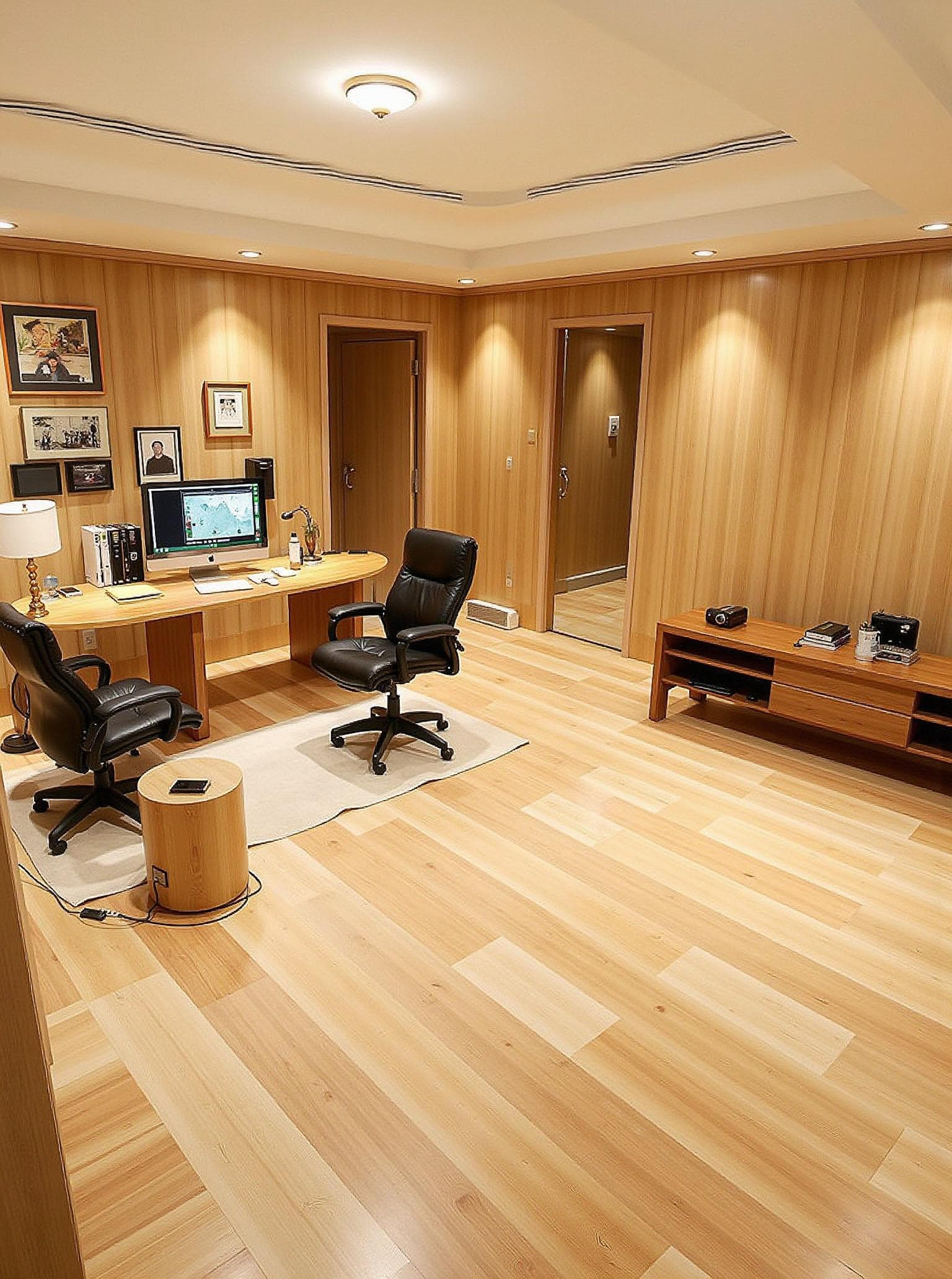
Japandi Staging
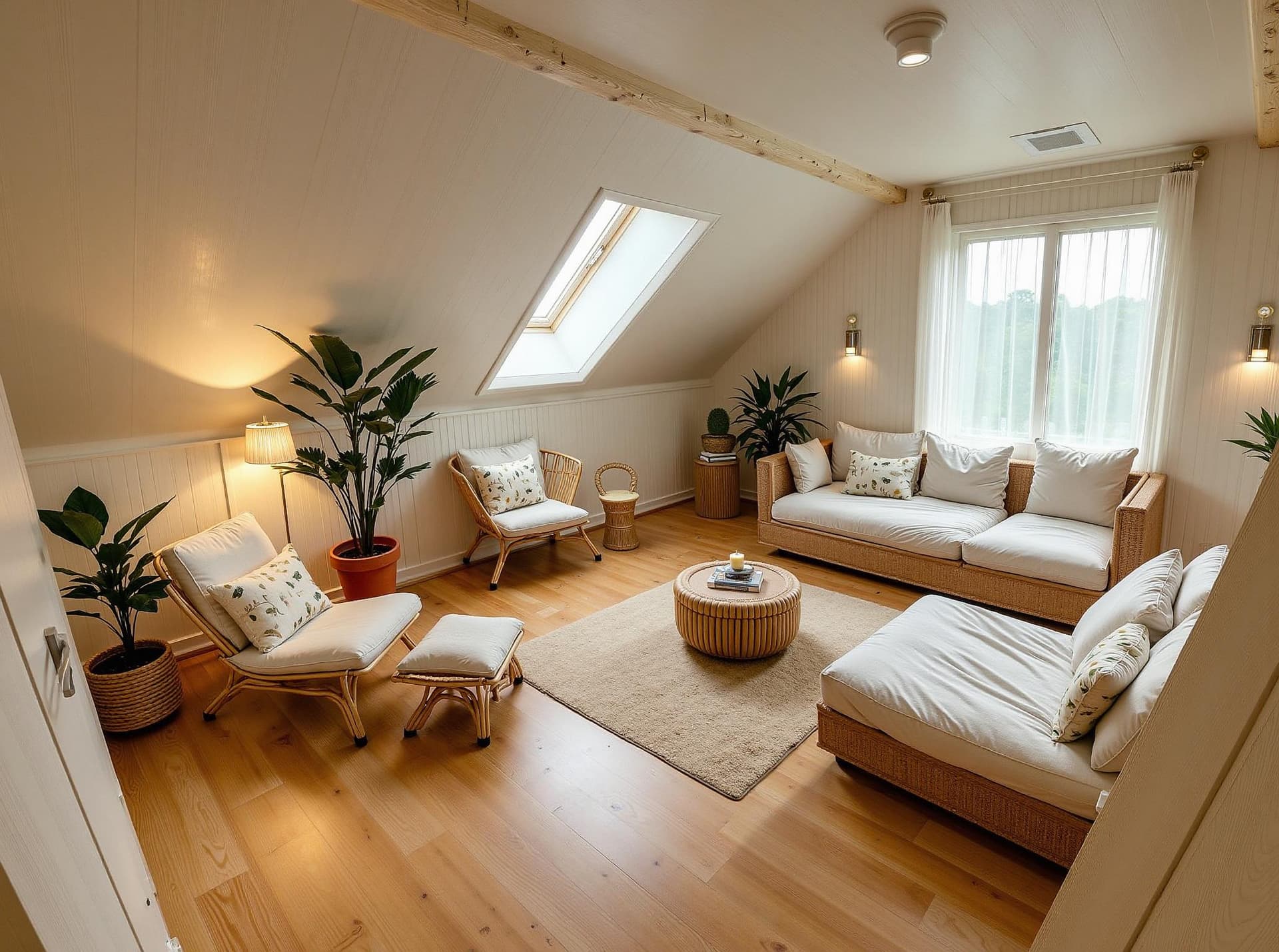
Coastal Staging
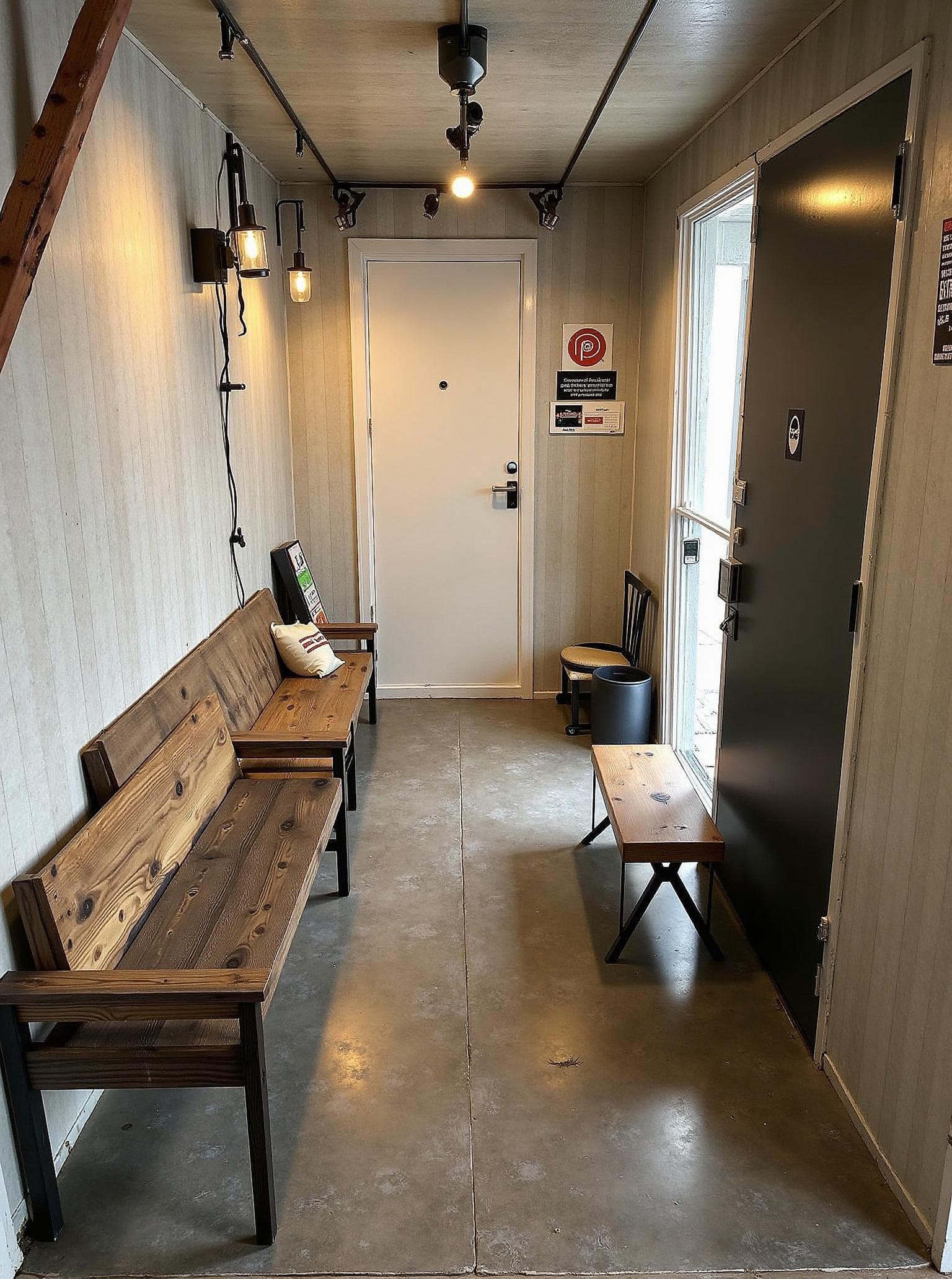
Industrial Staging
Built for Realtors Who List Vacant Properties
An empty room does not show where a sofa, bed, or dining table might go. Start with a clear property photo and explore a furnished concept that gives viewers a sense of how the space could be used.
Upload the room, choose a style, and compare the result with the original. Try different looks when your allowance or credits permit, but treat each image as an illustrative option rather than an exact record of the property.
Keep the unstaged image, disclose the digital alteration as your MLS requires, and check that the result does not suggest features the property lacks. This makes the staged view useful alongside an accurate view of the real room.
See the JanvAI overview, read more about virtual staging AI, or try a photo in the room design tool.
Start Virtual Staging Your Listings Today
Explore a furnished concept from your vacant room photo. One free generation is available after sign-in with standard options.
Get Started with Virtual Staging